Warn vs block in Margin Keep
Warn watches quietly and logs profit at risk. Block checks each customer's live cart prices and can stop checkout when an order falls below your floor — and never when costs are missing.
Margin Keep starts by watching: rules log what would have happened and the estimated profit protected — checkout does not change. Protect campaign insurance adds peak-sale tools, alerts, and Admin pause first. When you are ready, open Settings → Protect controls to switch to Block as an optional fail-open backstop.
How Block checks a cart
Block looks at the exact items in the customer's cart and the price they will actually pay right now — including sale prices. It adds up each item's price and your known cost, then compares the order to your margin floor. If the order is below your floor, checkout or Buy it now is stopped and the shopper sees a short, friendly message — not your margin numbers.
Add to cart still works when Block is on. Shoppers can keep items in the cart, remove a discount or product, and try checkout again. Blocking happens at checkout, not when the item is first added.
What shoppers see
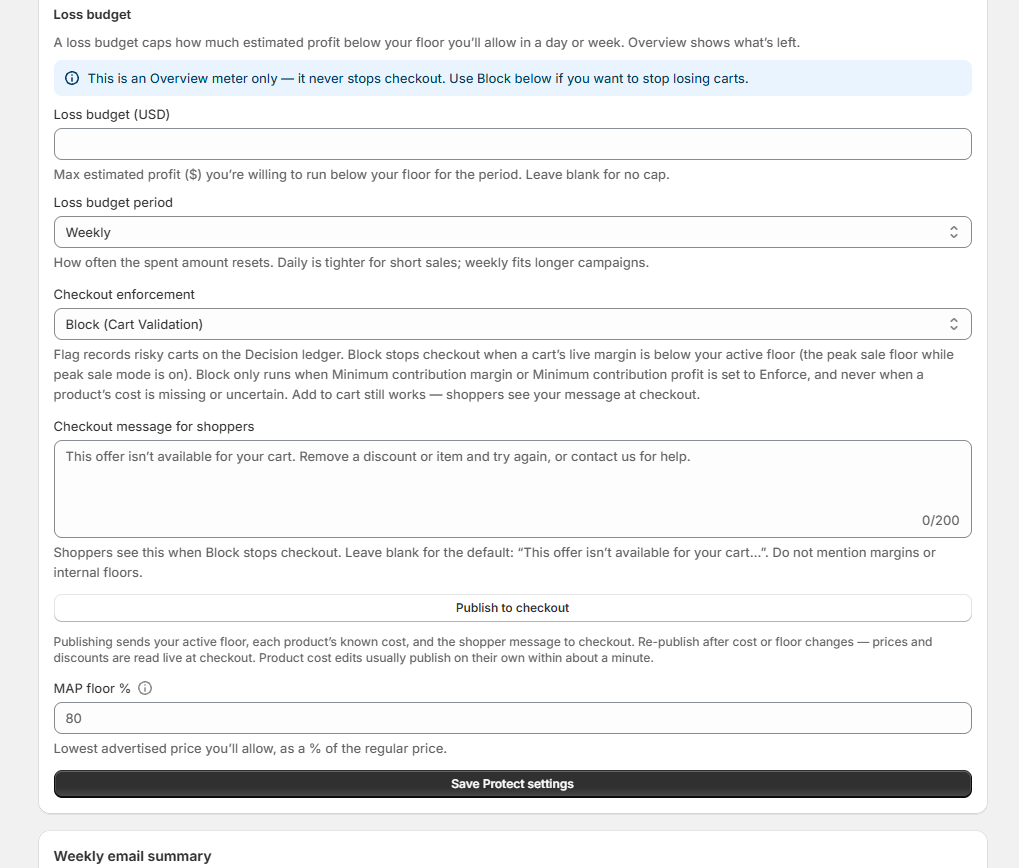
By default, shoppers see: “This offer isn’t available for your cart. Remove a discount or item and try again, or contact us for help.” You can change that text in Settings → Protect controls under Checkout message for shoppers. Leave the field blank to keep the default. Keep the message helpful and customer-facing — avoid mentioning margins or floors.
Checkout stays open when data is incomplete
Missing or uncertain product costs never block checkout. Block only stops an order when every item in the cart has a trustworthy (known) cost and the order is still below your floor. If even one item has a missing or estimated cost, that cart is allowed through.
How to turn on Block (Protect)
- Open Cost coverage and add costs until most variants show as known (reliable).
- In Settings → Protect controls, choose Block (Cart Validation).
- Optional: customize the Checkout message for shoppers, or leave blank for the default.
- Click Save Protect settings. That applies Flag or Block, your floor, and the shopper message to checkout. Use Publish to checkout only if Save could not publish automatically, or to push costs now.
- On a development store, add a below-floor item and confirm it stays in the cart; then open checkout or Buy it now and confirm the friendly message appears.
- Place a cart with a product that has no cost and confirm checkout still completes (fail-open).
Keeping costs and floors in sync
Checkout uses the costs, floor, mode, and shopper message from your last successful Save Protect settings (or Publish). Product cost edits usually update checkout on their own within about a minute (large spreadsheet imports may take a few waves). Saving Protect settings with Flag or Block re-publishes your policy. Prices and discounts are read live — no publish needed. Use Publish to checkout in Settings if auto-publish failed or you want an immediate cost update.
Was this page helpful?